
TAB 1 CONTENT : How to create new tab item
If you need to create a new tab, first open the « Document Overview ».
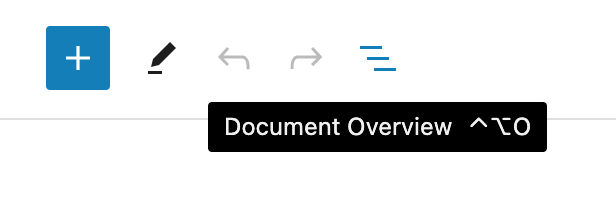
Add item to navigation menu
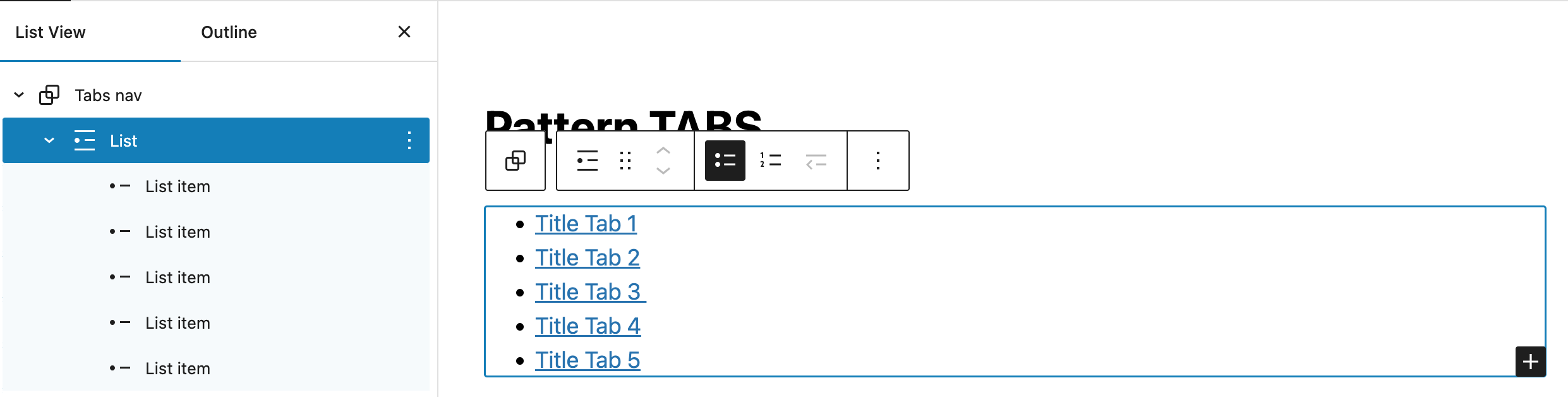
You need to add a new item in the list (group Tabs Nav > List).
In the « Document Overview », select to block « List », and click on the black « + » button inside the editor block.
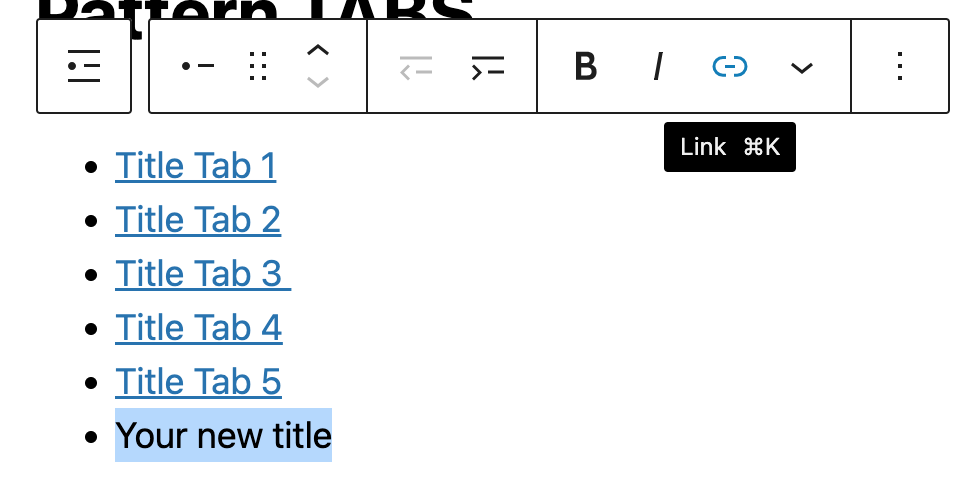
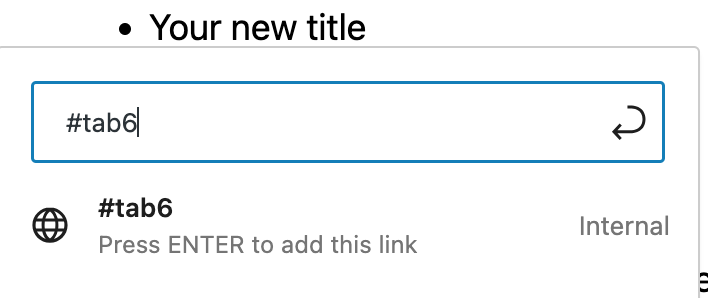
Make a link on your new title text to #tab{number}.
Last step, is to give an additional CSS class to your new item.
Select it from the « Document Overview », and go to the options block in the right sidebar.

Add the additional class « tab ».

Add tab content group
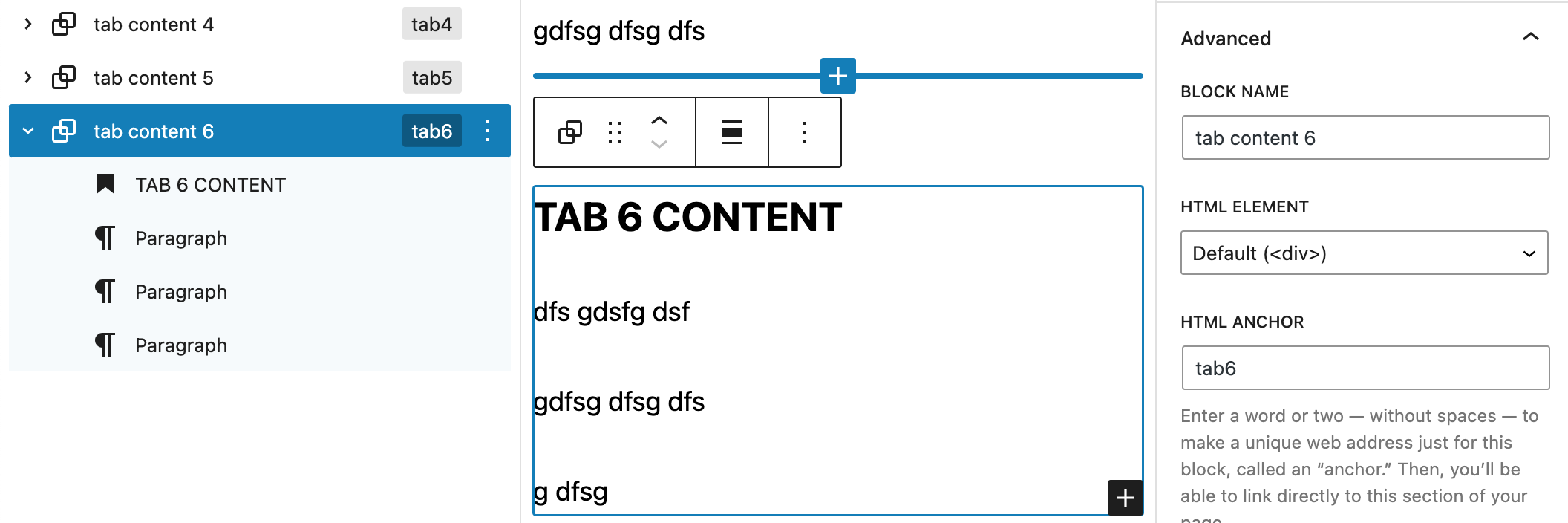
Now create the new tab content {number} group. The simplest way is to duplicate one of the existing « tab content » from the « Document Overview ». (option in the 3 vertical dots)

Select your new block group, go to the right column in block options, and deploy « Advanced » options.
Give a new explicit name to your group (block name), and fill the html anchor name with tab{number} choosen in the list item link.
That’s all !
TAB 3 CONTENT
dfs gdsfg dsf
gdfsg dfsg dfs
g dfsg
TAB 4 CONTENT
dfs gdsfg dsf
gdfsg dfsg dfs
g dfsg
TAB 5 CONTENT
dfs gdsfg dsf
gdfsg dfsg dfs
g dfsg
TAB 6 CONTENT
dfs gdsfg dsf
gdfsg dfsg dfs
g dfsg